Learning how to choose a monitor starts with your work and games, not the largest number on the box. A display can have a high refresh rate yet be awkward for reading or incompatible with the connection you plan to use. Compare the whole setup before narrowing the shortlist.
Write down the computer, desk space and tasks the screen must support. Include long documents or code, the games you actually play and any laptop docking requirement. There is no single best size or panel for every user, and this guide does not rank or claim to have tested products.
Set priorities for your real workflow
Choose a primary task and a few secondary requirements. A competitive game, photo work and a long spreadsheet session make different demands. Decide which compromise would bother you most: unreadable small text, limited desk room, unsuitable motion handling or repeated cable switching between devices.
A fictional student who writes reports all day and plays games at night should evaluate both activities. A brief animated demonstration in a shop does not show how a page of normal text looks at the intended viewing distance. Bring a list of representative content rather than relying on a dramatic demo.
Set a total budget that includes any required cable, dock, mounting equipment or replacement stand. Check current prices and return terms only after the technical shortlist is clear. A cheaper screen can become a more expensive setup if an essential connection or adjustment is missing.
Match size, resolution and scaling
Resolution describes the pixel grid, while physical size determines how that grid is spread across the screen. A larger diagonal does not automatically mean more usable information. The operating system’s scaling setting also affects how large interface elements and text appear.
Microsoft’s display guidance recommends using an appropriate native resolution and explains separate scaling controls. Running below the native resolution can reduce text sharpness or change the image’s layout. If text is too small, review supported scaling before choosing a lower resolution merely to enlarge it.
Test familiar applications at the intended settings. Check whether menus, text and remote-work tools remain usable, especially if you mix displays with different scaling. Do not infer comfortable readability from resolution alone or assume every older application handles scaling equally well.
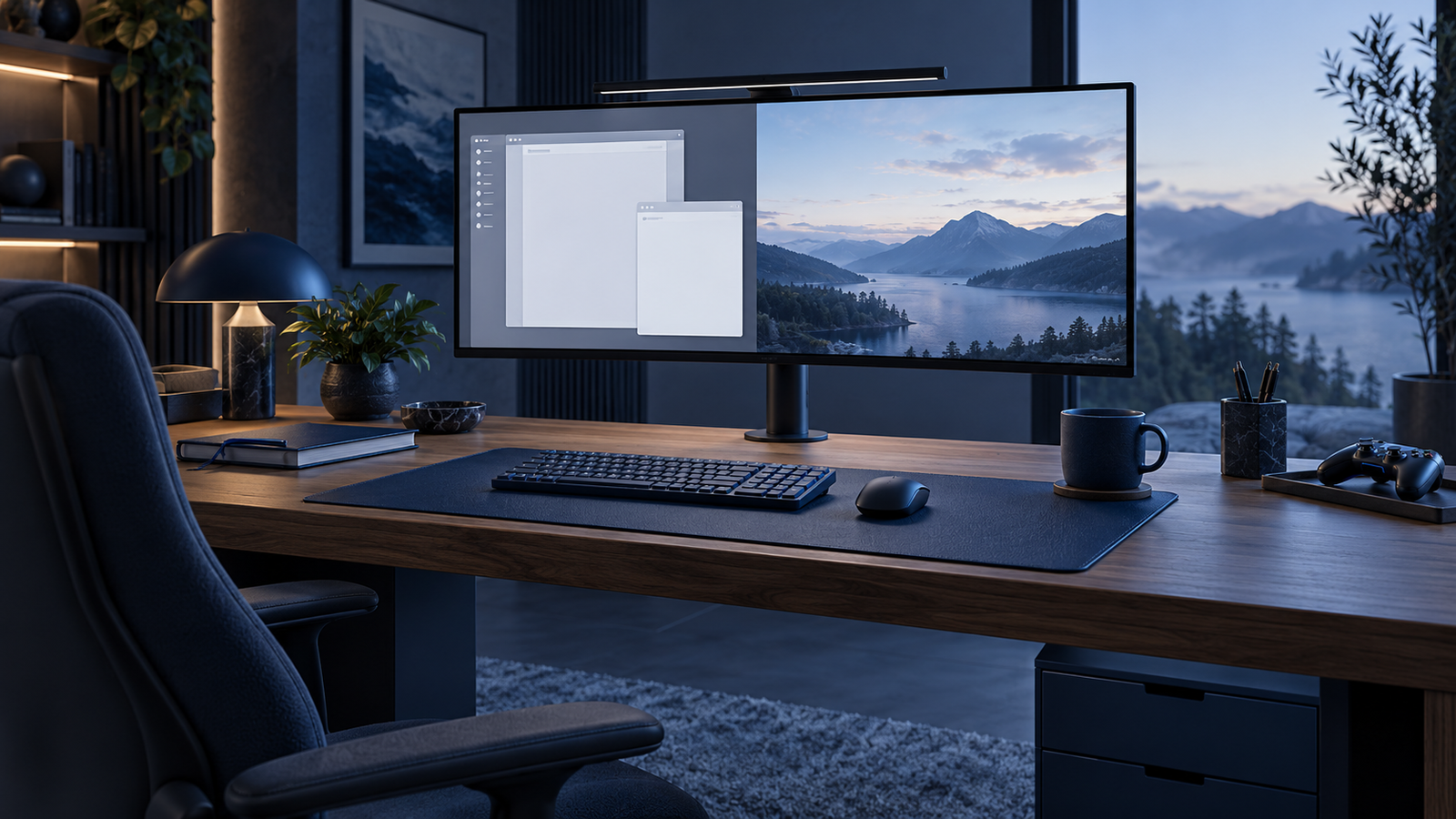
Measure the desk depth and the complete display footprint, including its stand. An ultrawide screen may replace some window-switching, but it also changes where you look and how you arrange applications. Choose it because that arrangement helps your workflow, not because wider always means more productive.
Separate refresh rate from game frame rate
Refresh rate describes how often the display can update its image. The game and graphics system produce frames. A high-refresh monitor does not make the computer render every game at that rate, so compare your intended settings and system capability with the display modes you hope to use.
Intel’s monitor guide explains resolution, refresh, response behavior and synchronization concepts. Variable-refresh features can help coordinate supported displays and graphics systems, but their availability and operating range depend on the exact combination. A logo alone does not confirm every mode over every connection.
Do not equate a quoted pixel response-time figure with total input latency or overall motion quality. Test methods and display settings can differ. Read exact model documentation and evidence with stated conditions rather than comparing two headline millisecond numbers as though they described identical behavior.
Microsoft documents checking and selecting refresh rate in Windows display settings. The options shown depend on the monitor and supported configuration, and some choices can change the resolution. Verify the active mode after setup instead of assuming the advertised maximum enabled itself.
Verify the entire connection chain
Check the computer’s output, monitor input, cable and any adapter or dock together. The display’s maximum mode may require a particular input or configuration. Count ports based on the devices you need simultaneously, not simply the total sockets pictured on the back.
Microsoft’s USB-C troubleshooting guidance explains that display functionality depends on supported modes across the computer, display and cable. The connector’s physical shape does not prove that a laptop port can output video or that an arbitrary cable supports the intended arrangement.
For a one-cable laptop setup, verify video support, charging requirements and peripheral data separately. A monitor may provide some power without meeting the laptop’s needs under load. Check the exact model documentation and the full dock path; adding an adapter can introduce another constraint rather than solve one automatically.
| Requirement | Evidence to check | Practical test |
|---|---|---|
| Readable workspace | Size, native resolution and scaling | Normal documents at desk distance |
| Gaming mode | Supported refresh and synchronization | Actual selected display mode |
| Laptop connection | Video, power and cable support | Connect with intended dock/cable |
| Desk fit | Stand footprint and adjustments | Comfortable position and access |
Treat HDR and image claims carefully
A display accepting an HDR signal is not the same claim as meeting a particular certified performance tier. VESA’s DisplayHDR program defines certification requirements and lists products. Verify the exact certification and model if that capability matters to your use, rather than relying on an HDR word in a store title.
Picture quality depends on more than a single brightness or contrast claim. Consider the room, reflections and the content you will view. If accurate color is a professional requirement, identify the needed workflow and calibration evidence instead of treating a general gaming mode as proof of suitability.
Panel-family labels are useful background but cannot rank all models within them. Evaluate the specific product’s documented behavior, limitations and warranty conditions. Avoid assuming every display using the same technology has identical text clarity, viewing characteristics or long-term care requirements.
Include position and adjustment in the purchase
A screen that cannot be positioned sensibly can be inconvenient even when the specifications fit. Check height, tilt and other adjustments against the desk and chair you use. If an arm is needed, confirm the display’s mounting pattern, weight and the arm’s supported limits.
The Canadian Centre for Occupational Health and Safety discusses monitor angle and distance and emphasizes adapting guidance to the person and workstation. Use it as a starting point for comfortable placement rather than a rigid promise that one distance suits everyone.
Keep frequently used content in a position that does not require repeated awkward turning or leaning. Consider glare from windows and lights, and leave room for the keyboard and normal working posture. A display purchase cannot itself guarantee relief from discomfort; persistent concerns deserve appropriate professional advice.
Verify the shortlist and setup
Shortlist a small number of exact models and record unresolved questions before ordering. Confirm included cables, warranty, return conditions and any features that require software. Save the relevant specification pages so you can compare the delivered unit and revision with what you intended to buy.
- Prioritize ordinary work, games and desk constraints.
- Check native resolution and readable scaling.
- Match gaming modes to the actual graphics system.
- Verify every output, input, cable and dock dependency.
- Confirm image-feature claims and physical adjustments.
- Test representative tasks within the seller’s return conditions.
After connecting the monitor, confirm resolution, refresh, scaling and any supported features you intend to use. Open familiar text, images and games, then check basic controls and inputs. A useful monitor balances the whole experience; the right purchase is the model whose verified capabilities match your everyday setup.