Docker for beginners starts with a useful separation: the package you obtain is not the same thing as the running application. An image supplies the files and environment; a container is an instance running from that image. Understanding that difference makes starting, inspecting and stopping a small app much less mysterious.
Begin on a suitable local learning machine with no sensitive data involved. The commands below are a proposed exercise, not a test performed for this article. Do not run them on an existing production server or treat a successful first page load as a secure deployment.
Docker for beginners: the basic pieces
Docker’s container introduction describes containers as isolated processes with the files needed to run a component. They are useful for separating application environments, but isolation does not mean arbitrary software is harmless or that configuration no longer matters.
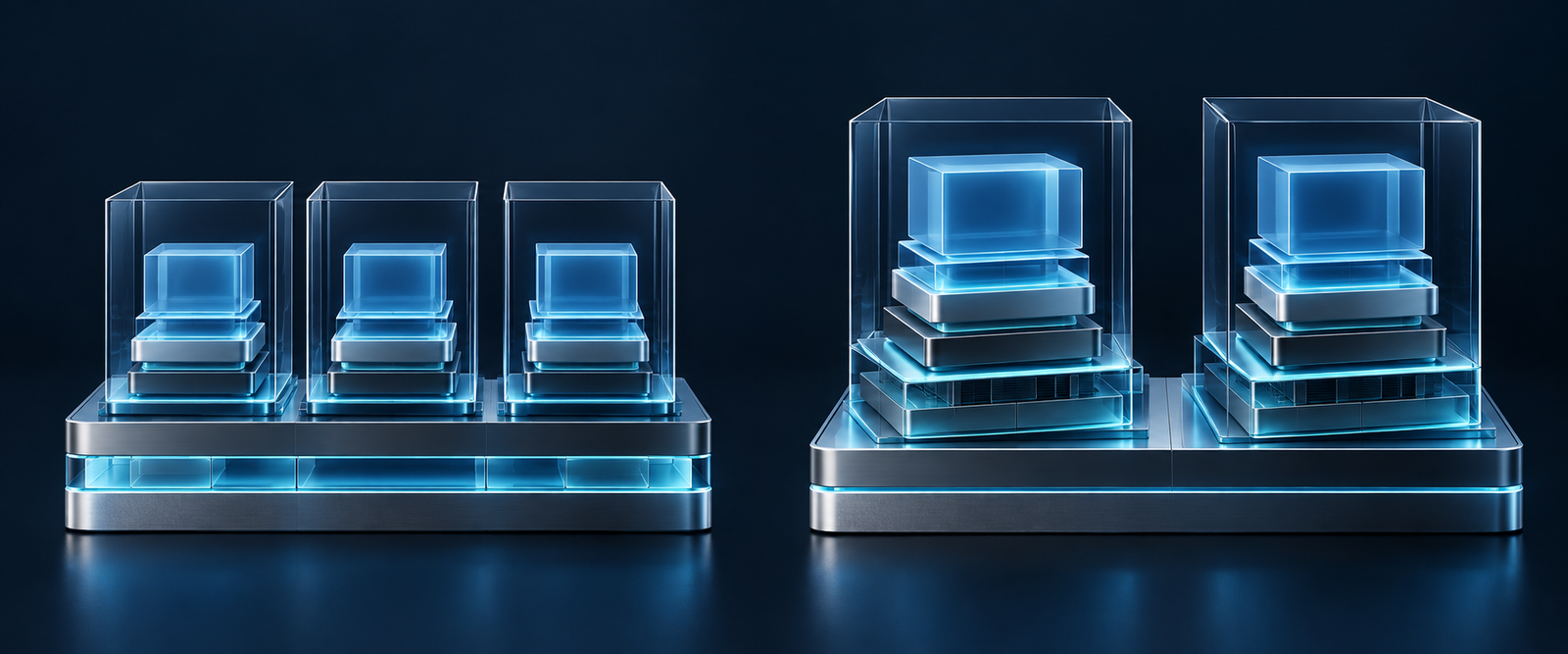
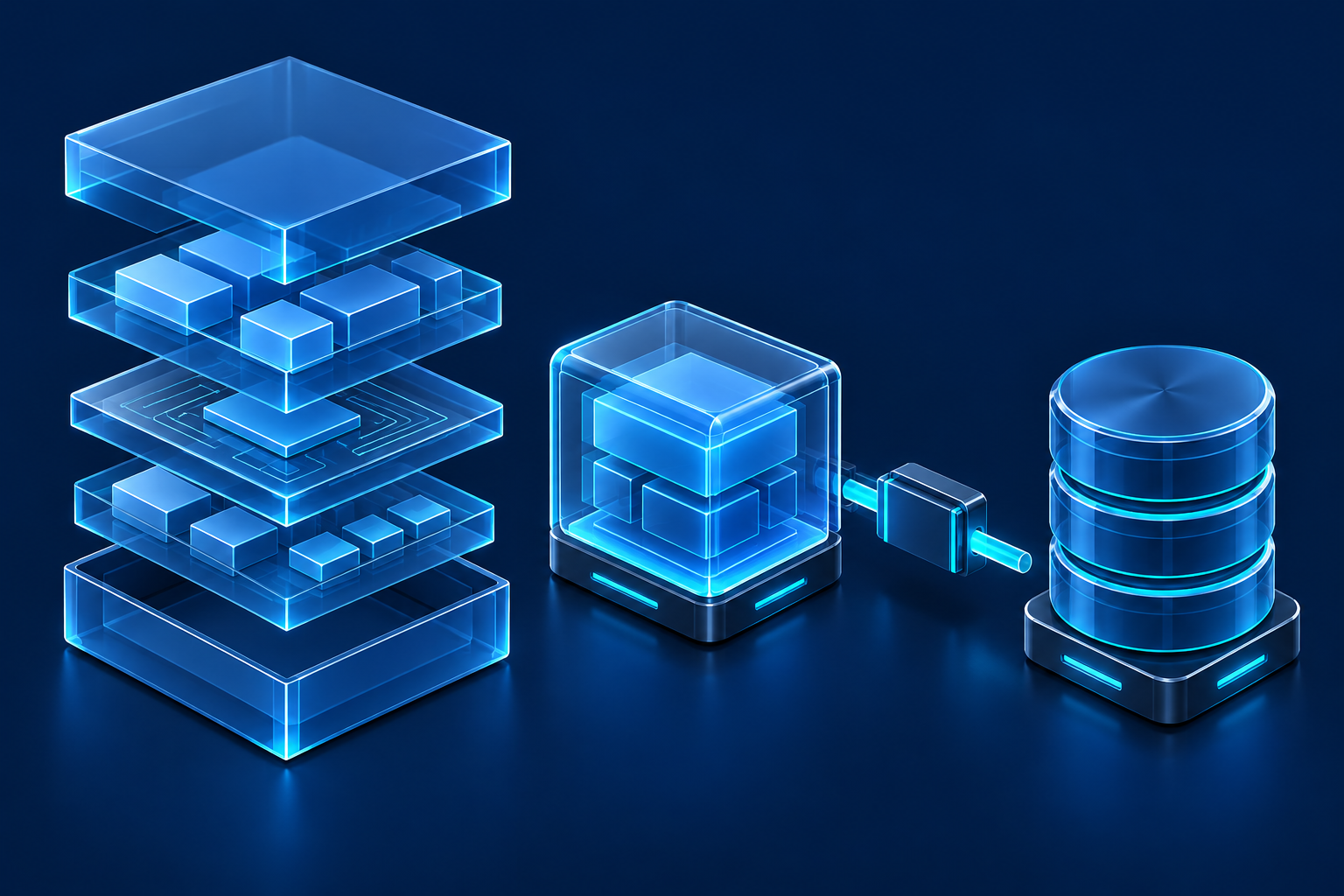
The image guide explains that an image is a packaged set of files, binaries, libraries and configuration, composed of layers. Running an image creates a container; downloading an image alone does not mean your application is running. You can have multiple containers based on the same image.
| Piece | Purpose | Beginner question |
|---|---|---|
| Image | Packaged application environment | Which package did I choose? |
| Container | Instance of that environment | Is the process running? |
| Published port | Host-to-container access route | Where can I reach it? |
| Volume | Persistent data storage | What survives replacement? |
Prepare the learning environment
Use Docker’s official installation guidance for your platform and check its current requirements and applicable terms. Installation differs across operating systems. If a managed work machine restricts virtualization or software installation, use the approved process rather than changing security settings to force an exercise to run.
For this example, assume a supported Docker installation is already working with Linux containers and the local Docker context is selected. Confirm you are operating on your intended learning machine, not a remote server. Keep existing project directories, credentials and database backups out of the exercise.
Choose a known image and read its documentation. This walkthrough uses the NGINX Docker Official Image as a simple web-server example. Its stable tag is a moving tag, so different dates can resolve to different image contents. Reproducible production releases require a more deliberate version and update policy.
Start one local container
Docker’s run reference documents creating and starting a container from an image. The following example assigns a distinctive practice name and runs in the background. It publishes the server’s container port 80 through local host port 8080.
docker run --name ts-learning-web -d -p 127.0.0.1:8080:80 nginx:stableThe address before the ports is intentional. Docker’s port-publishing guide warns that published ports listen on all host interfaces by default and documents binding to a specific address. This example binds to the local loopback address rather than deliberately offering the web server to the network.
On the same local machine, the proposed browser destination is http://127.0.0.1:8080. If you use a remote Docker host or a different context, that assumption changes. Do not respond to an unexpected failure by opening firewall ports or publishing on every interface without understanding where the container is actually running.
A name or port already in use is a conflict to investigate, not permission to remove another container. Inspect the existing state and choose an unused practice name or port if appropriate. Record any change so the inspection and cleanup commands still target only the container you intended to create.
Inspect before changing things
A running process, a published port and a responding application are different observations. The container-list reference explains that docker ps shows running containers and its all option includes stopped ones. The logs reference describes retrieving a container’s recorded output.
docker ps
docker ps -a
docker logs --tail 30 ts-learning-web
Use the name, status and port mapping to establish what exists. If the process exited, read the error instead of creating several more copies. If it runs but the browser cannot reach it, compare the host, port and Docker context. Repeating the start command will not explain a wrong destination.
Logs can contain sensitive application information in real projects. Read only what you need and remove private material before asking for help. A screenshot of an error should not casually expose tokens, customer records or configuration. This practice example intentionally has no real account or private application data.
Understand where data lives
Docker’s persistence guide explains that changes in a container’s writable files are removed when that container is deleted, while volumes have a separate life cycle. Stopping a container and deleting it are different operations. Do not learn the distinction by experimenting on a real database.
Before adding persistent data, decide which files need to survive replacement, where they will be stored and how they will be backed up. A volume is not automatically a backup. Persistence protects against one life-cycle event, but it does not by itself provide independent recovery from deletion, corruption or host failure.
Keep the first exercise small enough that it needs no valuable stored data. Once the image/container/port relationship is clear, use a separate documented persistence exercise with disposable files. That makes the expected result easier to understand and avoids mixing several unfamiliar failure modes at once.
Stop the practice container deliberately
Docker’s stop reference documents sending the process its configured stop signal and allowing a grace period. Stop only the named practice container after you have confirmed its identity. Do not run broad cleanup or prune commands as a shortcut on a machine containing other work.
docker stop ts-learning-web
docker ps -a
The second command lets you observe that the stopped container still exists. Removing it and managing unused images or volumes are separate decisions. Read the relevant documentation and confirm what must be retained before cleaning up an environment with meaningful data.
Keep the next step safe and specific
Docker’s security guidance emphasizes the power of controlling the daemon and sharing host directories. Do not grant privileged access, mount your entire computer or expose the daemon merely because an unfamiliar command asks for it. Containerization does not turn an untrusted workload into a harmless one.
- Identify the image source and understand how its tag is updated.
- Keep the practice container and port easy to recognize.
- Inspect process state, logs and the actual browser result separately.
- Understand persistent data before replacing or deleting anything.
- Treat local learning as preparation, not evidence of production readiness.
Keep an observation sheet for the exercise with four entries: the image reference, the container name, the port mapping and what the browser actually displayed. If the exercise fails, add the exact error and whether it occurred during download, startup or connection. These details turn a vague Docker does not work report into a specific question. Share only the necessary excerpt when seeking help. Do not conceal an unexplained problem by changing several flags, switching images and opening more network access at the same time; that makes the final result much harder to understand.
Docker becomes practical when you can explain which package you chose, which process is running, how it is reached and what happens to its data. Start with that small set of questions. Building an image, coordinating several services and deploying securely are useful next steps once the first container is understandable.