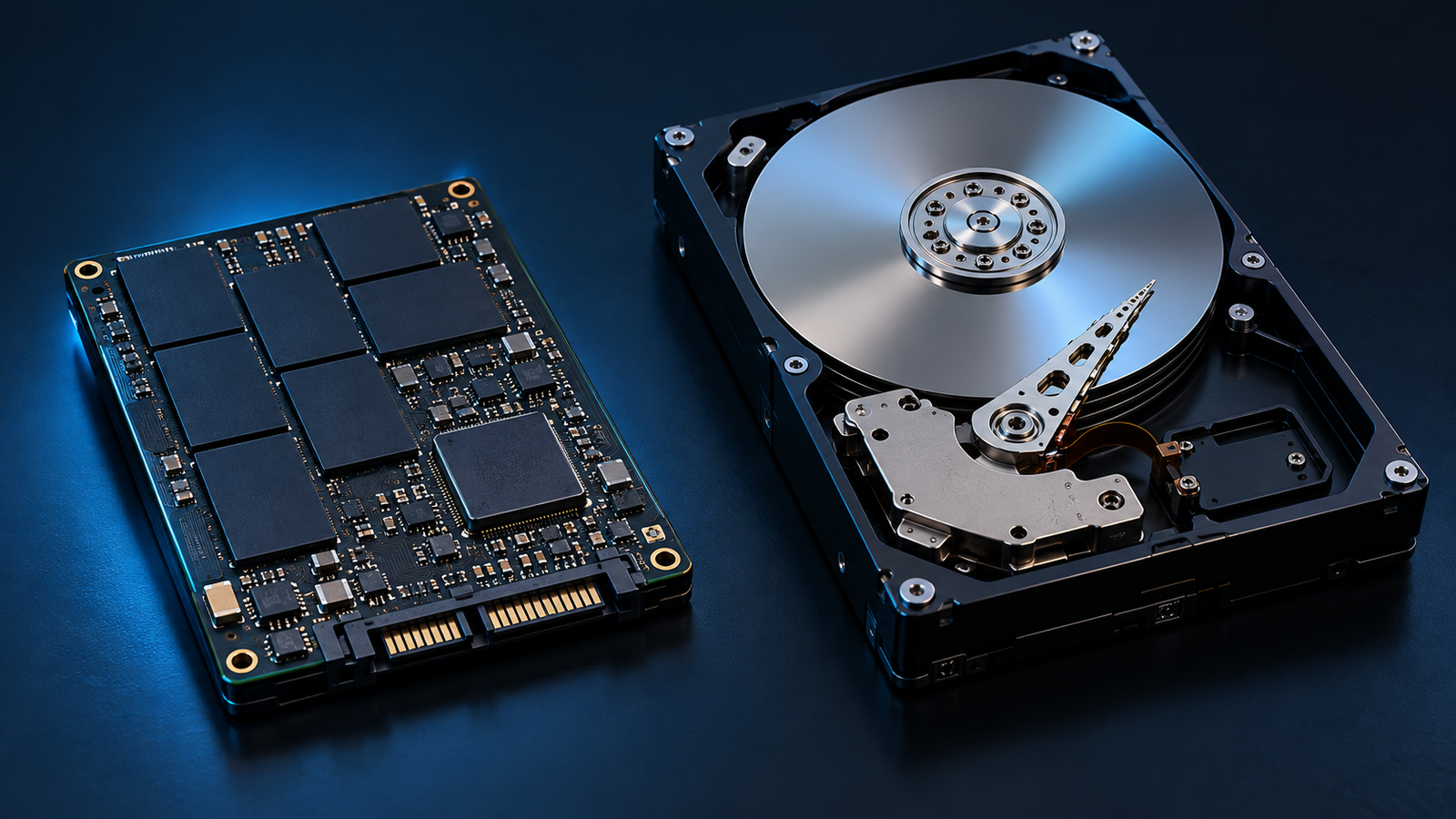
The SSD vs HDD decision starts with what makes you wait. Opening applications, moving a large video file and keeping an infrequently used photo collection are different jobs. A drive that suits one can be an awkward purchase for another.
For most everyday system-drive upgrades, an SSD is the sensible starting point. An HDD can still make sense when affordable capacity matters more than quick access. Lifespan deserves a separate assessment: neither technology turns your only copy of a file into a safe one.
Key takeaways Choose around the workload, check the exact drive’s compatibility and endurance information, and keep a recoverable copy elsewhere. Capacity, speed and data protection are separate purchasing decisions.
SSD vs HDD: what actually changes
An HDD stores information on spinning magnetic platters, using a moving head to reach it. A typical SSD stores information in NAND flash chips without that mechanical movement. Sandisk’s comparison describes the distinction between mechanical storage and flash-based access.
That helps explain the experience of using each drive. An SSD can reach scattered files without repositioning a physical head. An HDD remains useful for storing substantial collections when the cost of capacity is the main constraint. Compare current prices for the capacity you need rather than assuming a fixed price difference.
| Question | SSD | HDD |
|---|---|---|
| Everyday response | Quick scattered-file access | Mechanical seek delays |
| Bulk capacity | Compare price per usable TB | Often capacity-focused value |
| Wear assessment | Write endurance and health | Model, workload and health |
| Typical role | System and active work | Less active collections |
Start your shortlist by writing down the files you use daily and the files you merely retain. You may discover that only a small part of your collection needs your fastest storage. That distinction is more useful than treating every stored byte as equally urgent.
Read speed figures in the context of your work
Sequential transfers involve data in a continuous sequence, such as copying a large file. Random access involves data scattered around a drive, a common pattern when applications use many smaller files. Intel’s storage guide separates these measurements and cautions that synthetic benchmarks do not always represent everyday performance.
A peak transfer figure therefore answers a narrower question than ‘Will my computer feel faster?’ Check which operation a review measured and under what conditions. Launching an application, loading a project and copying an archive should each be evaluated as its own task.
Describe the wait before buying the solution
For example, imagine a student who waits for applications to open but rarely accesses older course videos. Their practical goal is to shorten the daily wait while retaining enough room for the collection. This hypothetical case points toward an SSD for active work, with the less active files considered separately.
Someone who mainly needs more space for completed projects faces a different decision. Before shopping, describe the inconvenience precisely: slow access, insufficient capacity or uncertainty about recovery. Buying the most impressive speed specification can leave the actual problem unresolved.
Understand endurance without inventing an expiry date
There is no single reliable lifespan in years that applies to every SSD or every HDD. The exact model, workload, operating conditions and actual health matter. A useful comparison begins with the manufacturer’s specifications and warranty rather than a universal replacement countdown.
What an SSD’s TBW rating tells you
NAND flash has a finite ability to endure programming and erasing. Kingston explains TBW and DWPD: terabytes written describes a write-endurance quantity, while drive writes per day expresses a workload relative to capacity and a stated period. These measures help compare intended write workloads.
Consider a hypothetical drive with a stated endurance allowance and a workload that writes the same amount every day. Dividing that allowance by the daily writes gives a rough workload-planning figure. It cannot predict the day the device will fail, and a workload that changes invalidates the original estimate.
Check the exact capacity variant, because a product family’s name is insufficient. Also read the warranty conditions. Samsung’s SSD warranty table, for example, specifies coverage by time or TBW, whichever comes first, for listed products. That is a manufacturer’s coverage rule, not a promise that data remains readable until either limit.
For an HDD, use its published workload and environmental requirements rather than borrowing an SSD’s TBW framework. Ask whether the model is intended for your use and whether you can recover if it stops working. A comparison that ends at the warranty period leaves that second question unanswered.
Give each drive a clear storage role
An operating system, frequently opened applications and an active project workspace are sensible SSD priorities. A less frequently used media collection can be a sensible HDD role. The useful dividing line is how often you need access and what waiting would cost you, alongside the capacity you can afford.
For a hypothetical home video workflow, separate the current edit from completed exports. Put the material you actively work on into the performance budget, then price storage for the finished collection separately. Keep recovery copies outside this allocation: a second storage role alone does not establish a backup process.
Check the workload when choosing an HDD
For NAS or sustained write work, check more than capacity and spindle speed. Western Digital’s HDD guidance distinguishes conventional magnetic recording, or CMR, from shingled magnetic recording, or SMR. Overlapping tracks in SMR can affect sustained writes, while CMR is generally the more suitable starting point for its described NAS and RAID workloads.
Use the exact model’s documentation and the storage system’s compatibility guidance. Do not turn a family’s advertising label into a blanket recommendation for every capacity or appliance. A drive selected for occasional file storage has different responsibilities from one selected for continuous shared use.
Check compatibility before paying for performance
M.2 describes a physical form factor; it does not by itself identify the communication method. Kingston’s M.2 explanation distinguishes SATA-based and NVMe-based M.2 drives. A drive’s shape alone is insufficient evidence that your computer supports it.
Find the computer or motherboard’s storage specifications before choosing a replacement. Check the supported interface, physical size and installation requirements for that exact system. For external storage, include the enclosure’s supported drive type and the computer connection in the same check.
- Record the exact computer, motherboard or enclosure model.
- Confirm the supported drive interface and physical dimensions.
- Check available capacity against current files and realistic growth.
- Compare the exact drive variant’s endurance, warranty and workload guidance.
- Plan how the existing data will be copied and verified before replacing anything.
Keep that information beside the shopping shortlist. If a listing omits a necessary detail, resolve it before buying. This is a basic compatibility check, not a complete installation procedure; the system manufacturer’s instructions should govern the actual replacement.
Treat health monitoring and recovery as separate jobs
A health indicator can help identify a problem, but its scope matters. Microsoft’s storage-warning guidance says its described Windows monitoring covers NVM SSDs, not SATA SSDs or HDDs. It also describes estimated remaining life as a manufacturer-based estimate rather than a precise failure date.
If Windows reports a critical storage warning, prioritize backing up the data and following the relevant support guidance. The absence of that particular notification is not proof that an unsupported drive type is healthy. Check the manufacturer’s supported health tools where appropriate.
Security note A fast drive and a reassuring health reading do not replace a recoverable copy. The Canadian Cyber Centre’s ransomware guidance recommends protected offline backups and testing recovery, because connected copies can also be affected by an attack.
Before retiring the old drive, choose a few representative files from the new copy and confirm you can open them. Keep the original while you verify the migration and your separate backup. Those checks are practical safeguards, not evidence that either device has become failure-proof.
Make the decision around the files you use
Write down the primary job, required capacity, compatible connection and recovery plan before comparing products. Favor an SSD for responsive active work, and consider an appropriately specified HDD when less active capacity is the priority. Read endurance and warranty information as decision inputs rather than promises about your files.
The best result may be one suitable drive or a deliberate division of roles. Either way, you should be able to explain what becomes quicker, where the rest of the files belong and how you will restore them if the chosen drive fails.